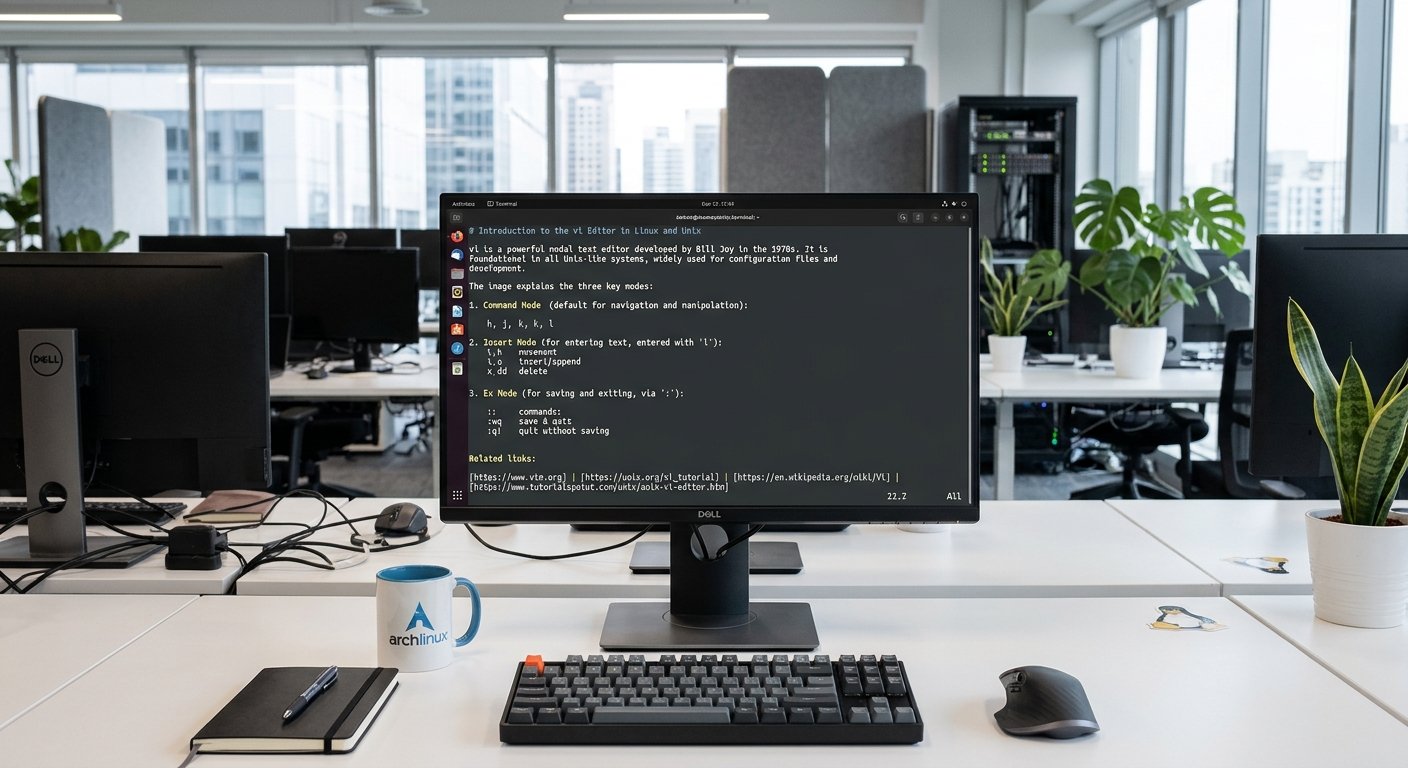
The vi text editor (short for visual) is a foundational tool in the Unix and Linux ecosystems. Developed in the late 1970s by Bill Joy for a version of the Berkeley Software Distribution (BSD), vi was designed to work on low-bandwidth terminals by minimizing screen redraws and keeping the user’s hands anchored to the home row. Nearly every Unix-like operating system includes vi or its modern, feature-rich clone, Vim (Vi IMproved). Understanding how vi functions is an essential rite of passage for any system administrator, developer, or enthusiast.
The Philosophy of Modal Editing
Unlike modern graphical text editors (such as Notepad or VS Code) where typing keys immediately inserts characters onto the screen, vi is a modal editor. This means the editor behaves differently depending on the active mode. When you first open a file, vi starts in Command Mode.
- Command Mode: In this mode, every keystroke is interpreted as a shortcut command rather than text. You use Command Mode to navigate through text, delete lines, copy blocks, and execute system commands. Resources like TutorialsPoint’s Unix vi Editor Tutorial provide great introductory breakdowns of these foundational states.
- Insert Mode: To actually type and write text, you must explicitly transition into Insert Mode. Pressing keys like
i(insert) ora(append) shifts the editor so that your keystrokes are written directly into the document. - Command-Line (Ex) Mode: Accessed by typing a colon (
:) from Command Mode, this lets you interact with the file buffer at a macro level—such as saving files, quitting, or running global search-and-replace routines.
For a deep dive into mastering these transitions, you can read The Ultimate Guide to VI Editor on Dev.to.
Getting Started: Opening and Exiting Files
To launch the editor from a terminal prompt, you pass the filename as an argument:
Bash
vi filename.txt
If the file does not exist, vi creates a blank template for it. If it does exist, the contents populate the terminal window.
Because vi does not have an obvious “Close” or “X” window button, exiting requires specific Ex commands. You must first press Esc to ensure you are safely back in Command Mode, then input one of the following:
:wqorZZ— Save (w) changes and quit (q) the editor.:w— Save the file without exiting.:q!— Quit the editor immediately, discarding any unsaved modifications.
Comprehensive references for basic setup and file handling can be found on Colorado State University’s Basic vi Commands Guide and the University of Delaware’s Getting Started with vi Resource.
Core Navigation and Editing Mechanics
One of vi‘s greatest strengths is efficiency; your fingers never have to leave the keyboard to reach for a mouse or arrow cluster.
1. Movement Without Arrows
While modern implementations allow arrow keys, traditional vi relies on home-row keys:
h– Move left one characterj– Move down one linek– Move up one linel– Move right one characterw– Jump forward to the beginning of the next word0(zero) – Jump to the absolute beginning of the current line$– Jump to the end of the current line
2. Text Manipulation Commands
Editing commands can be combined with multipliers (e.g., typing 5dd deletes five lines at once):
i/a– Enter Insert Mode before or after the cursorx– Delete the single character under the cursordd– Delete (cut) the entire current lineyy– Yank (copy) the current line into memoryp– Put (paste) the yanked or deleted text below the current lineu– Undo the last action performed
For practice exercises and quick-reference syntax sheets, check out the R-Bloggers Beginner’s Guide to VI and VIM and Red Hat’s Introduction to the vi Editor. Additionally, you can configure personalized global preferences (like auto-indentation or line numbering) via a .vimrc file, as outlined in the BYU-Idaho Linux Tutorial PDF.
Source List
- Colorado State University – Basic vi Commands
- BYU-Idaho – Linux Tutorial: vi
- Red Hat – An Introduction to the vi Editor
- Dev.to – The Ultimate Guide to VI Editor: From Novice to Ninja
- TutorialsPoint – Unix/Linux: The vi Editor Tutorial
- University of Delaware – Unix: Getting started with vi
- R-Bloggers – A Beginner’s Guide to VI and VIM: Mastering Text Editing in Linux