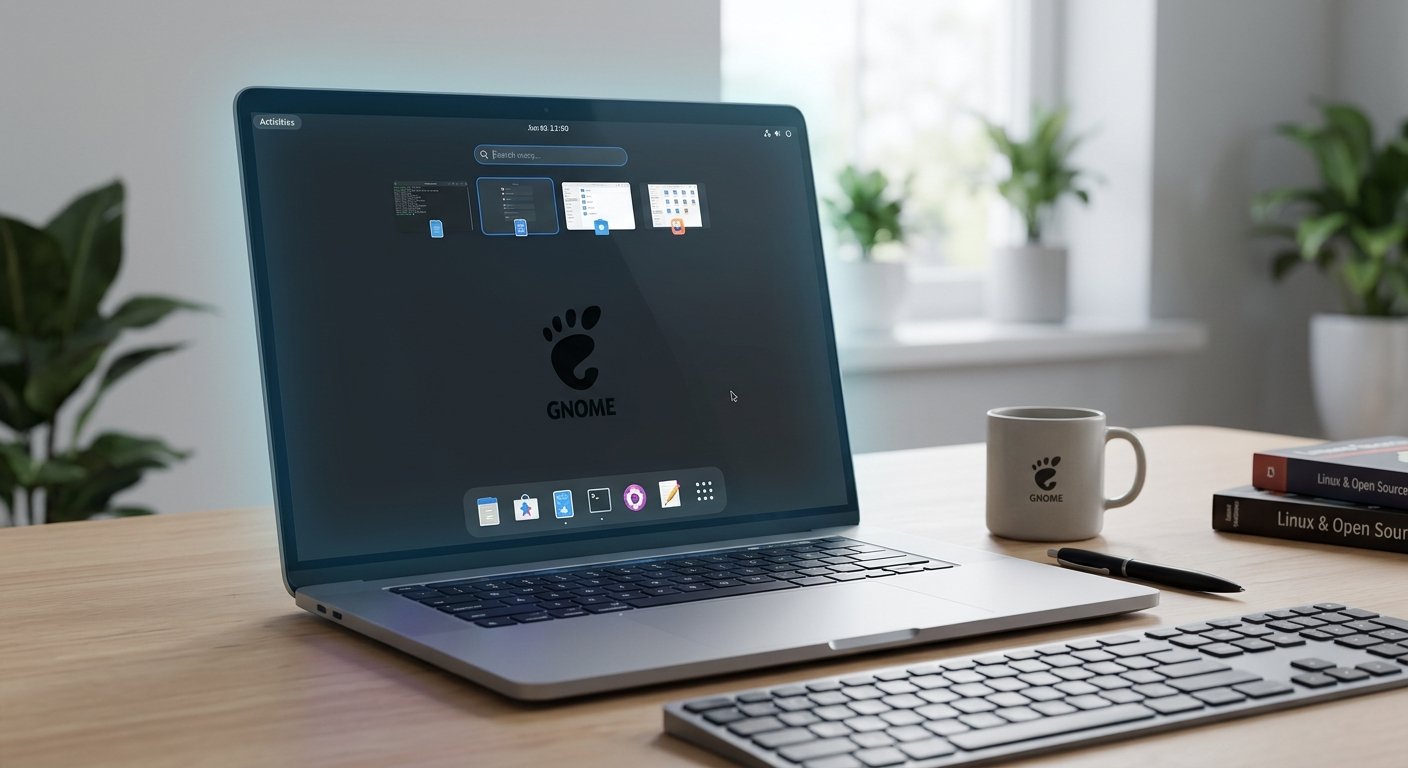
The GNOME desktop environment stands as one of the most prominent, cohesive, and intentional user interfaces in the open-source Linux world. Designed around clarity, minimalism, and focus, GNOME rejects the classic desktop paradigm—icons scattered across a wallpaper, taskbars packed with launcher buttons, and complex drop-down start menus. Instead, it introduces an opinionated workflow that streamlines user interaction and reduces visual clutter.
The Evolution and History of GNOME
GNOME was announced in August 1997 by Miguel de Icaza and Federico Mena as the GNU Network Object Model Environment. Its initial creation was driven by a practical need: the KDE desktop environment, launched a year prior, relied on the Qt widget toolkit, which at the time did not carry a fully free open-source license. To provide a completely free software desktop environment, the GNOME project was born, leveraging the free GTK (GIMP Toolkit) widget framework.
Over the decades, GNOME has underwent several major paradigm shifts:
- GNOME 1.x & 2.x (1998–2011): Traditional desktop environments featuring top and bottom panels, application drop-down menus, task lists, and desktop icons. GNOME 2 became the standard desktop across major Linux distributions like Ubuntu, Fedora, and Red Hat Enterprise Linux.
- GNOME 3.x (2011–2021): A complete redesign introduced GNOME Shell, removing traditional desktop icons and taskbars in favor of a spatial, distraction-free environment centered around the Activities Overview.
- GNOME 40+ Era (2021–Present): A major modernization effort that introduced a horizontal workspace layout, smoother gestures, updated core apps using
libadwaita, and regular half-year release cycles.
The latest release, GNOME 50, continues to refine this foundation with modern performance improvements. It introduces expanded GTK4/libadwaita UI updates, streamlined file manager pop-outs, optimized sandboxed image handling via Glycin, enhanced document annotation capabilities, and upgraded system accessibility settings.
Understanding the GNOME Workflow: How to Use It
Using GNOME effectively requires stepping away from traditional desktop habits like keeping shortcut icons on a background desktop wallpaper. Instead, GNOME operates on a dynamic keyboard- and gesture-centric paradigm:
- Super Key (Windows Key): Pressing the
Superkey triggers the Activities Overview instantly. - Type to Search: Once in the overview, you simply start typing. GNOME’s unified search searches local applications, files, documents, settings panels, system calculators, and web queries simultaneously.
- Dynamic Workspaces: Windows are assigned to virtual workspaces organized horizontally. Creating or closing windows automatically scales the number of available workspaces, preventing screen crowding.
- Touchpad Gestures: On laptops running Wayland, swiping up with three fingers opens the Activities Overview, and swiping left or right switches between dynamic workspaces seamlessly.
Why the Activities Overview is the True “Home” Page
In traditional desktop operating systems, the “Home” experience is an empty wallpaper where application shortcuts sit idly behind active windows. In GNOME, the Activities Overview serves as the true launcher and central dashboard of the desktop experience.
When you boot GNOME or log into a session, you do not land on a blank desktop; you land directly inside the Activities Overview. This design decision frames the overview as your starting point:
- Intentionality: Rather than staring at wallpaper, the desktop immediately presents your open windows, your app dock (dash), and a search bar to start your next task.
- Task Switching: Viewing all active windows at a glance eliminates the need to cycle through tab buttons on a bottom panel.
- Less Distraction: By keeping desktop shortcuts off the main wallpaper, GNOME maintains a clean digital environment that lets you focus entirely on active applications.
Treating the Activities Overview as your home base makes navigating Linux significantly faster once muscle memory sets in.
The Power of Pure GNOME: Why Vanilla is Best
A popular feature of GNOME is its extension system (extensions.gnome.org), which allows users to add third-party plugins to modify shell behavior. However, GNOME is at its absolute best when used in its default (“vanilla”) state without extensions:
- System Stability & Reliability: Shell extensions run within the desktop compositor’s main thread. Outdated or unmaintained extensions are the primary cause of desktop crashes, UI stuttering, or broken shell sessions after system upgrades.
- Design Consistency: The GNOME Human Interface Guidelines (HIG) ensure that core applications, dialogs, and navigation buttons follow a unified aesthetic and interaction pattern. Adding panels, taskbars, or mismatched dock extensions breaks this design coherence.
- Lower Resource Overhead: Running vanilla GNOME minimizes CPU and memory footprint, delivering smoother frame rates and improved laptop battery life.
- Workflow Efficiency: Mastering GNOME as its designers intended—relying on hotkeys (
Super), quick searches, and workspace management—is fundamentally faster than clicking through complex traditional menus.
Bibliography & External Links
- Official GNOME Project & Desktop Environment
GNOME Official Website - GNOME 50 Official Release Notes
GNOME 50 “Tokyo” Release Documentation - GNOME Shell User Interface Overview
GNOME Help: Visual Overview of GNOME Shell - History & Technical Architecture of GNOME
Wikipedia: GNOME Desktop Environment History - Desktop Philosophy & Extension Management
ITU Online: What is GNOME? Desktop Philosophy & Performance