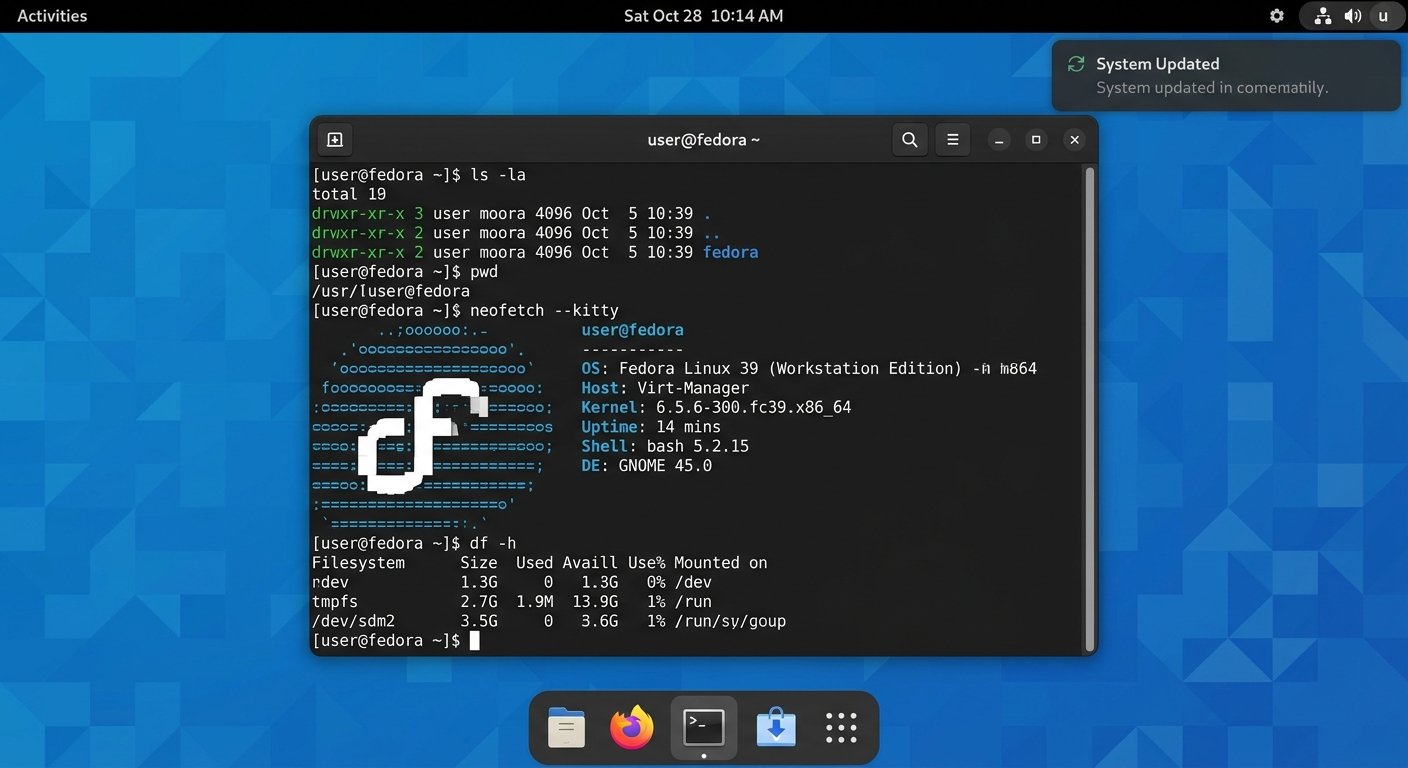
The visual interface of modern Linux distributions, such as Fedora or Ubuntu, often provides an inviting and intuitive environment for users. However, for those seeking the true power and efficiency of the operating system, the GNOME Terminal is an indispensable tool. A terminal emulator, as the name suggests, emulates the historical physical terminal, providing a graphical window into the command line interface (CLI). This allows users to execute instructions directly to the shell, the core interpreter of the operating system. This essay will explore the GNOME Terminal, detailing how to open, close, and utilize it effectively for common Linux commands.
Opening the GNOME Terminal
GNOME, the popular desktop environment, makes accessing the terminal straightforward. There are several conventional methods:
- Using the Activities Overview: Press the
Superkey (often the Windows key) to open theActivities Overview. Type “terminal” in the search bar. The “Terminal” application icon will appear. Click it to open a new window. - Using the Application Menu: In the Activities Overview, you can also click the “Show Applications” button (the grid icon) to view all installed applications. Locate and click on the “Terminal” icon.
- Keyboard Shortcut: The default keyboard shortcut to open a new terminal window in GNOME is
Ctrl+Alt+T. This is often the quickest method. - Right-Click Menu: On some systems and file managers, right-clicking on the desktop or within a file manager folder may present an “Open in Terminal” option. This conveniently opens the terminal already navigated to that specific directory.
To see these methods in action, particularly on a modern Linux distribution, view the image below, which shows the GNOME Terminal open on a Fedora OS desktop.
Essential Functions and Navigation
Once the terminal is open, you are presented with a command prompt, usually taking the form [user@hostname directory]$. The final character, $ for regular users or # for the root (administrator) user, indicates the shell is ready for input. The prompt is where all your command-line magic begins.
Here are some fundamental practices for interacting with the GNOME Terminal:
- Keyboard Focus: Ensure the terminal window is active (has focus) for your keystrokes to be received by the shell. You can do this by clicking inside the window.
- Case Sensitivity: Unlike some systems, Linux is case-sensitive. The command
lsis entirely different fromLS. - Navigating Command History: You don’t need to re-type long commands. Use the
UpandDownarrow keys to scroll through yourcommand history. - Tab Completion: This is a vital time-saver. Type the first few letters of a command, file, or directory path and press
Tab. The shell will automatically complete it if the input is unique, or show you options if it isn’t.
Fundamental Commands
To begin, familiarize yourself with these common commands:
| Command | Full Name | Description | Example |
ls | List | Lists files and directories. | ls -la (lists all files, including hidden ones, in long format) |
cd | Change Directory | Changes the current working directory. | cd /etc (moves to the system configuration directory) |
pwd | Print Working Directory | Displays the full path of the current directory. | pwd |
touch | Creates an empty file. | touch newfile.txt | |
mkdir | Make Directory | Creates a new directory. | mkdir my_project |
rm | Remove | Deletes files or directories. | rm file.txt (or rm -r directory to delete a directory) |
mv | Move | Moves or renames files or directories. | mv oldname.txt newname.txt |
cp | Copy | Copies files or directories. | cp file.txt backup.txt |
man | Manual | Accesses the built-in manual for commands. | man dnf (opens the manual for the Fedora package manager) |
Features of GNOME Terminal
GNOME Terminal offers more than just a single command prompt. It includes productivity features that make it user-friendly:
1. Multiple Tabs
Working on several tasks simultaneously is a common workflow. GNOME Terminal allows you to open multiple tabs within a single window.
- To open a new tab: Press
Shift+Ctrl+T, or select “New Tab” from the “File” menu. - To switch between tabs: Use
Ctrl+Page UporCtrl+Page Down. - To close a tab: Press
Shift+Ctrl+W.
2. Customization
The terminal is highly customizable to fit your visual preferences and needs. Access these options through Preferences (usually found by right-clicking inside the terminal or from the hamburger menu).
- Profiles: Create different profiles with unique settings (e.g., color schemes, fonts, initial directory).
- Colors: Change the foreground, background, and palette colors. A popular choice is the
SolarizedorMonokaitheme. - Fonts: Choose a different
monospace fontand adjust its size for better readability. - Scrolling: Adjust the scrollback buffer to determine how many previous lines are remembered.
Closing the GNOME Terminal Properly
It’s crucial to close the terminal properly to avoid leaving orphaned background processes, particularly if you were running long jobs.
- Exiting the Shell: The most graceul method is to type
exitat the prompt and pressEnter. This command terminates the current shell session. If you have nested shells or active background jobs, the shell may warn you. - Using Keyboard Shortcuts: You can also use the default key combination to close the current tab or window:
Ctrl+D. This is also a signal to the shell to terminate, functionally similar to typing “exit”. - Window Controls: The standard way to close any graphical application also works: click the “X” button in the terminal’s title bar. GNOME may warn you if there are active processes running inside the terminal window.
The GNOME Terminal is the gateway to Linux proficiency. While a graphical interface is convenient, mastering the CLI allows for automation, precise control, and unparalleled troubleshooting capabilities. For more information, consult the extensive resources available online, including official documentation and user guides.
Sources and Bibliography
Sources Referenced in Text
gnome-terminalpackage information on Fedora.bashshell manual (man bash).GNOME Helpdocumentation.- Linux command
manpages (e.g.,man ls,man cd).