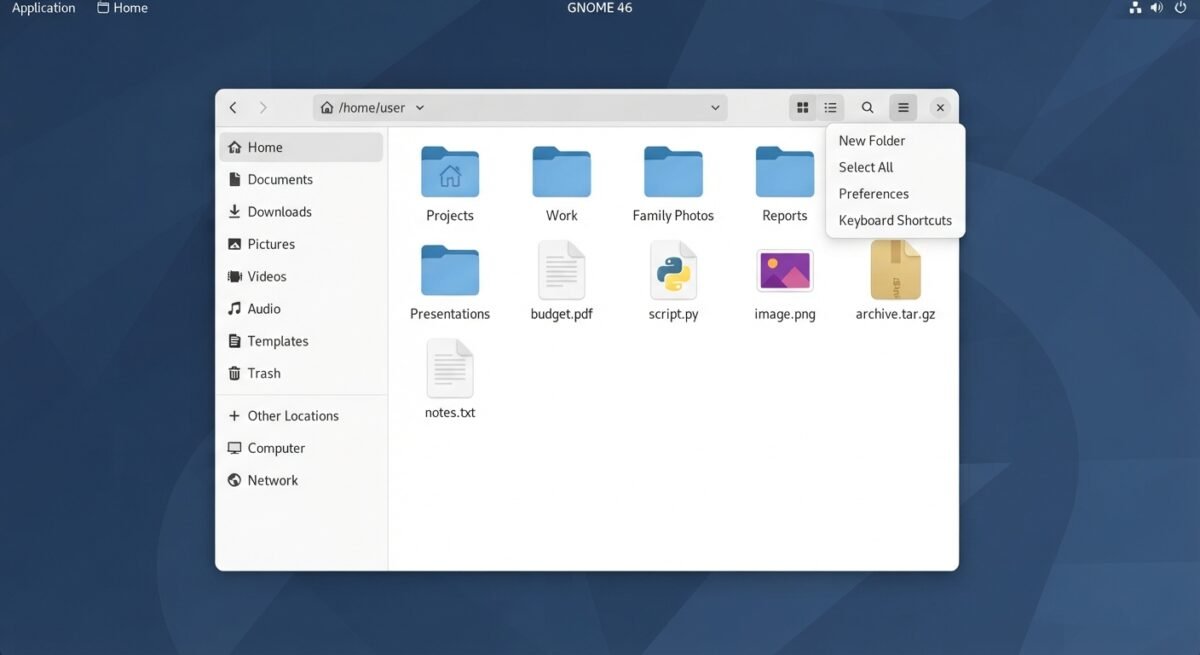
In the graphical world of Linux, a file manager is far more than a visual wrapper around filesystem commands—it is the primary spatial bridge between a user’s personal data, system storage, network shares, and installed applications. On the GNOME desktop environment and throughout the default workstation edition of Fedora Linux, that bridge is GNOME Files, widely known by its original and internal codename, Nautilus. Balancing clean minimalist design with deep desktop integration, Nautilus exemplifies how open-source software evolves across decades of shifting interface paradigms, toolkit migrations, and Linux distributions.
Origins and Development History
Nautilus began at the turn of the millennium as a play on words: just as a nautilus has a chambered shell, the software aimed to serve as a rich graphical shell for the operating system. Its earliest preview builds emerged in early 2000 under the auspices of the now-defunct Eazel Inc., before reaching version 1.0 in March 2001 and joining GNOME 1.4. Released under the GNU Lesser General Public License, it quickly became central to making desktop Linux approachable for everyday users rather than exclusively command-line veterans.
Over more than two decades of continuous development, Nautilus has undergone dramatic architectural and user-experience shifts:
- Early Interface & Toolkit Transitions: Early 2.x releases experimented with a “spatial” browsing model—treating folders like physical containers that open in distinct windows—alongside traditional browser-style navigation and custom visual assets. When GNOME transitioned from GTK+ 2 to GTK3 in the GNOME 3 era, Nautilus shed legacy complexity in favor of a streamlined sidebar, cleaner toolbar controls, and modern desktop conventions.
- Ecosystem Forks: Because Nautilus is so central to the GNOME experience, major interface shifts have periodically spawned forks maintained by other desktop projects—most notably Caja in the MATE desktop (derived from the GNOME 2 codebase) and Nemo in Linux Mint’s Cinnamon desktop.
- Under-the-Hood Capabilities: Modern Nautilus relies on GVfs and GIO to abstract local storage and remote protocols (such as SFTP, SMB/Windows shares, and WebDAV) seamlessly, while monitoring filesystem changes in real time via Linux’s
inotifymechanism. Features like batch renaming, integrated archive handling, thumbnail previews, and indexed search (via Tracker/Localsearch) have steadily folded common utility tasks directly into the file manager.
Nautilus in Fedora Workstation
For users running Fedora Workstation, Nautilus is preinstalled as the default file manager for GNOME and packaged through the Fedora Packages ecosystem. Fedora’s close alignment with upstream GNOME means users typically receive current releases of Nautilus relatively quickly compared to long-term-support enterprise distributions.
In day-to-day Fedora workflows, Nautilus integrates closely with system services and optional extensions:
- Terminal & Administrative Workflows: Developers and system administrators frequently launch Nautilus directly from a terminal window (
nautilus .opens the current directory) or install companion packages such asgnome-terminal-nautilusto open a terminal at a selected folder right from the context menu. - Alternative File Managers: While Nautilus fits GNOME’s focused design philosophy, Fedora users who prefer multi-pane or power-user layouts can easily install alternatives like Nemo (
sudo dnf install nemo) or Dolphin alongside it without breaking the system. Discussions on the Fedora Discussion forum and community guides on Fedora Magazine regularly explore customizing Nautilus and extending desktop workflows.
Practical Guide: How to Use Nautilus
Whether you are organizing project directories on Fedora or managing files across another GNOME-based Linux distribution, Nautilus combines straightforward point-and-click actions with time-saving shortcuts.
1. Navigating Locations and Views
- Sidebar & Path Bar: Use the left sidebar to jump quickly to Home, Recent, Starred, Network, Trash, or standard folders like Documents, Downloads, and Pictures. You can also toggle path entry (
Ctrl + L) to type or paste a directory path or network URI directly. - Grid vs. List View & Sorting: Switch between grid and list views from the header bar to adjust how much metadata you see at once, and sort items by name, size, type, or modification date.
- Live Search: Start typing or click the search icon to filter files and folders dynamically in the current location or across indexed directories.
2. Creating, Moving, Renaming, and Deleting Files
- Creating Folders and Templates: Right-click in an empty space (or use the menu/shortcut) to create a new folder. If you place starter files—such as blank text files, shell scripts, or document templates—inside your
~/Templatesdirectory, a New Document submenu appears in the right-click menu for rapid creation. - Copying, Moving, and Undo: Use standard shortcuts—
Ctrl + Cto copy,Ctrl + Xto cut/move, andCtrl + Vto paste—or drag and drop items between folders. If you make a mistake during a file operation,Ctrl + Z(Undo) helps reverse recent actions. - Renaming & Batch Renaming: Select a file and press
F2(or choose Rename from the context menu) to rename a single item. Selecting multiple files lets you rename them in bulk using patterns or find-and-replace rules. - Trash vs. Permanent Deletion: Pressing
Deletesends items to the Trash where they can be restored, whereasShift + Deletedeletes them permanently—use caution with the latter.
3. Working with Archives, Permissions, and Network Shares
- Archives: Right-click selected files or folders to compress them into an archive, or double-click/right-click archives to extract their contents.
- Properties & Permissions: Right-click any item and open Properties to inspect exact file size, location, timestamps, and—on Linux filesystems—read/write/execute permissions (including marking a script as executable).
- Remote Locations: Open Network or use a remote URI in the location bar (such as
sftp://orsmb://) to browse shared folders over SSH or a local network using GVfs.
Conclusion
From its origins in the early 2000s as an ambitious graphical shell for GNOME to its present role at the heart of Fedora Workstation, Nautilus has remained a cornerstone of desktop Linux usability. By pairing clean visual presentation with deep integration into Linux storage layers, search indexers, and keyboard-friendly workflows, it allows users to move effortlessly between everyday file organization and deeper system tasks.
Sources and Bibliography
- GNOME Files (Wikipedia). Overview of Nautilus/GNOME Files history, releases, architecture (GVfs, GIO, Tracker), and forks. Available at: https://en.wikipedia.org/wiki/GNOME_Files
- Fedora Packages —
nautilus. Package metadata and maintainer information for Nautilus in Fedora. Available at: https://packages.fedoraproject.org/pkgs/nautilus/nautilus - Fedora Magazine — “Creating and using Nautilus templates” (March 31, 2017). Guide to customizing
~/Templatesfor right-click document creation in GNOME Files on Fedora. Available at: https://fedoramagazine.org/creating-using-nautilus-templates/ - Fedora Discussion — “Open the current directory in Gnome files (nautilus)” (February 14, 2021). Community thread on launching Nautilus from the command line and integrating terminal workflows. Available at: https://discussion.fedoraproject.org/t/open-the-current-directory-in-gnome-files-nautilus/71812
- Scaler Topics — “How to Use Nautilus in Linux?” (September 3, 2023). Practical walkthrough of navigation panes, views, selection shortcuts, file operations, and search in Nautilus. Available at: https://www.scaler.com/topics/nautilis-linux/
- DEV Community — “Using Nemo in Fedora” (December 8, 2022). Context on Nautilus forks (such as Nemo) and installing/managing alternative file managers on Fedora. Available at: https://dev.to/epergo/using-nemo-in-fedora-37-1ha3